Simple Notes: Edit Notes
In this post, I walk through the implementation of the Edit Note screen pictured below
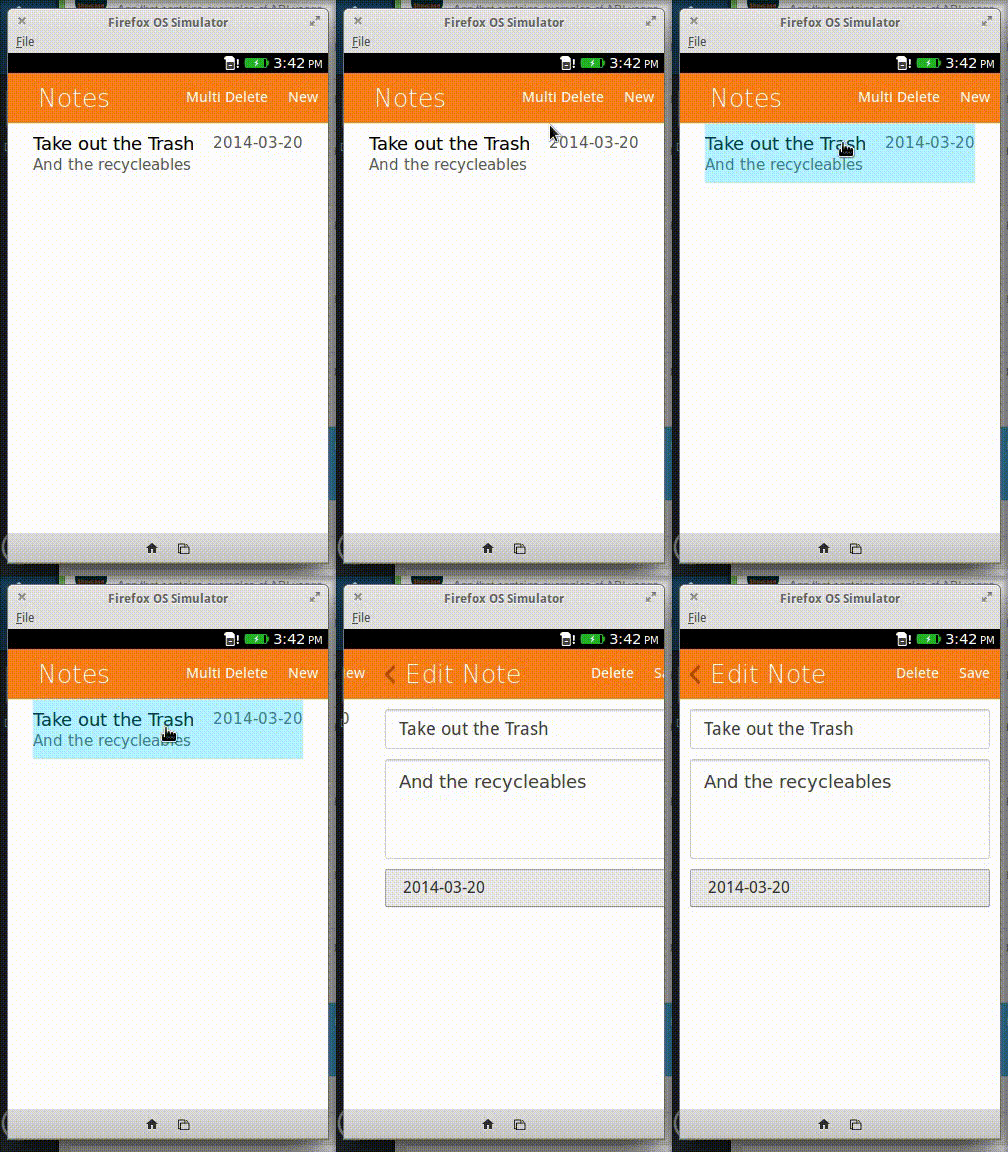
Intuition fails
The Edit Note section is very similar to the New Note section. My first instinct was to use the same section for both purposes and modify them in javascript according to which mode we were in. This is the essence of the Don’t Repeat Yourself principle, or DRY principle.
This turned out to be troublesome. Instead I opted to apply the DRY principle to the javascript code.
Structuring
The CreateNoteForm object managed the new note form. It’s interface was simply
function CreateNoteForm () {
	// initializes the form. Mainly takes care of connecting the date button to
    // the date picker
	init();

	getTitle();
	getContent();
	getDate();
}

// To use it...
var form = new CreateNoteForm();
form.init();
The object was modified to work with both forms, and renamed to NoteForm. It now takes a single parameter, the form to manage. The methods now operate on this form instead of the hard coded reference to the new note form.
function NoteForm ( formSelector ) {
	var form = ...; // could be the New Note form or the Edit Note form

	// Now these methods use the form variable
	init();
	getTitle();
	getContent();
	getDate();
}
For these changes to work, the structures for the sections containing the forms needed modifications. Elements needed to be reference by class instead of id. This required changes to the inputs and buttons elements, and the date picker. The end result was something like the following
<section id="create-note" role="region" data-position="right">
	<header>
		<a class="btn-back" href="#">
			<span class="icon icon-back">back</span>
		</a>
		<menu type="toolbar">
			<button class="btn-save">Save</button>
		</menu>
		<h1>New Note</h1>
	</header>
	<div role="main">
		<form>
			<p>
				<input type="text" placeholder="Note Title" class="note-form-title">
			</p>
			<p>
				<textarea placeholder="Note Content" class="note-form-content"></textarea>
			</p>
			<div class="hides-date">
				<input class="picker-date" type="date" />
			</div>
		</form>
		<p>
			<li><button class="btn-date" class="icon icon-dialog">Date Due</button></li>
		</p>
	</div>
</section>
The only CSS changes that were required was on the rule that hid the date picker
/* Hide the ugly date input result form */
div.hides-date {
    width: 0;
    height: 0;
    overflow: hidden;
    float: left;
}
Navigating
The next step was to show the Edit Note section whenever a note was clicked. This turned out to be trivial to implement. All we needed to do was call addNavigation() for every anchor in each list item. All relevant changes were confined to addNoteToList().
function addNoteToList(note) {
    var template = ...;
    var noteListItem = template.cloneNode(true);

	...	// Code that populates the template

	// The selector for the list item anchor is essentially
	//   li[note-id=#] a
	// where # is the note id
    var noteLISelector = "li[note-id=\"" + note.id + "\"]";
    addNavigation(noteLISelector + " a", "#edit-note");
}
Populating
Populating the Edit Note section required fetching the relevant note from the database. This can be accomplished as long as the note id is known. I stored the note id as soon as a note was clicked. The code for this is found in addNoteToList() again
function addNoteToList(note) {
    var template = ...;
    var noteListItem = template.cloneNode(true);

	...	// Code that populates the template

	// Navigation code
    var noteLISelector = "li[note-id=\"" + note.id + "\"]";
    addNavigation(noteLISelector + " a", "#edit-note");

	var anchor = noteListItem.querySelector("a");
    anchor.addEventListener('click', function() {
        var editForm = document.querySelector("#edit-note");
        editForm.setAttribute("note-id", note.id);
        populateEditNoteSection();
    });
}
As show in the code, the Edit Note section can be populated as soon as the note-id is stored. populateEditNoteSection() simply fetches the relevant note from the database and fills in the fields.
function populateEditNoteSection() {

    var section = document.querySelector("#edit-note");
    var noteId = parseInt(section.getAttribute("note-id"));

    var dbRequest = window.indexedDB.open(dbName, 1);

    dbRequest.onsuccess = function() {
        var db = this.result;

        var transaction = db.transaction([noteStoreName], "readonly");
        var notes = transaction.objectStore(noteStoreName);

        var getRequest = notes.get(noteId);

        getRequest.onsuccess = function(event) {
            var note = this.result;
			// fill in fields here
	    }

		... // some error handling
    };

    ... // more error handling
}
To fill in the fields, I opted to use the NoteForm object. I added the setTitle(), setContent(), and setDate() methods. They were simply defined as
function NoteForm(formSectionSelector) {
    var titleInput = form.querySelector(".note-form-title");
    var contentInput = form.querySelector(".note-form-content");
    var datePicker = form.querySelector(".picker-date");

    this.setTitle = function(title) {
        titleInput.value = title;
    }

    this.setContent = function(content) {
        contentInput.value = content;
    }

    this.setDate = function(date) {
        datePicker.value = date;
        if(date != "") {
            dateButton.innerHTML = date;
        } else {
            dateButton.innerHTML = "Date Due";
        }

    }
}
Filling in the fields now simply consisted of a couple of method calls.
getRequest.onsuccess = function(event) {
	var note = this.result;
	form.setTitle(note.title);
	form.setContent(note.content);
	form.setDate(note.date);
}
Buttoning
The last part of the puzzle was to add functionality to the save and delete buttons of the Edit Note sections. This was all contained in prepareEditNoteSection().
The bare the function needed to implement was the following
function prepareEditNoteSection() {
    var form = new NoteForm('#edit-note');
    form.init();
}
The back button was the most straightforward to implement.
function prepareEditNoteSection() {

    var form = new NoteForm('#edit-note');
    var section = document.querySelector("#edit-note");
    var backBtn = document.querySelector("#edit-note .btn-back");

    backBtn.addEventListener('click', function() {
        form.reset();
        section.removeAttribute("note-id");
    });
}
The other two buttons required the note id to function. This is stored in the edit-note section, but since the method is called once at runtime, we cannot store it in a variable. Instead we need to use a function to lookup the note-id when the buttons are clicked. The function is simply
function getNoteId() {
	return parseInt(section.getAttribute("note-id"));
};
The delete button calls deleteNotes(). It passes in the note id enclosed in an array. When the delete action completes successfully the back button is pressed and the notes list is reloaded.
function prepareEditNoteSection() {

	var deleteBtn = document.querySelector('#edit-note .btn-delete')
    var backBtn = document.querySelector("#edit-note .btn-back");

    deleteBtn.addEventListener('click', function() {
        deleteNotes([getNoteId()], function() {
            backBtn.click();
            reloadNotes();
        });
    });
}
Saving a note that is already in the database is synonymous with an update operation. The IndexedDB update method is put(). Interestingly enough, put() saves an object to the database even if it’s not already present. We can take advantage of this by modifying the saveNote method so that both forms can use it.
The modification is simple: provide the note id in the parameter. If the note id is present, set the note object we create within the method to have the same id. The put() method will do an update operation if the id is present, or it will just do a save operation if it is not.
function saveNote(form, id, successCallback) {

    var dbRequest = window.indexedDB.open(dbName, 1);

    dbRequest.onsuccess = function() {
        var db = this.result;

        var transaction = db.transaction([noteStoreName], "readwrite");
        var notes = transaction.objectStore(noteStoreName);

        var note = new Note(form.getTitle(), form.getContent(), form.getDate());

        if( id !== null ) {
            note.id = id;
        }

        notes.put(note);
    };
}
The save button handler can now use the new version of saveNote()
function prepareEditNoteSection() {

    var backBtn = document.querySelector("#edit-note .btn-back");
    var saveBtn = document.querySelector("#edit-note .btn-save");

    // Save button
    saveBtn.addEventListener('click', function() {
       saveNote(form, getNoteId(), function() {
            backBtn.click();
            reloadNotes();
        });
    });
}
Demo
Recent Blog Posts
- 20 Jan 2026 » I love the old man minimap in VS Code
- 03 Jan 2026 » On Resurrecting a 12 year old blog
- 09 Oct 2014 » Updating a forked Git repo
- 06 Oct 2014 » ADB access to remote server from local usb
- 30 Mar 2014 » Bug Progress: Day 2
- 27 Mar 2014 » Building the Emulator
- 11 Mar 2014 » Simple Notes: Edit Notes
- 10 Mar 2014 » Simple Notes: Hidden Notes Fix
- 07 Mar 2014 » Bug Progress: Day 1
- 06 Mar 2014 » Simple Notes: Date